A reference of every keyboard shortcut Octodo exposes, grouped by area
of the interface.
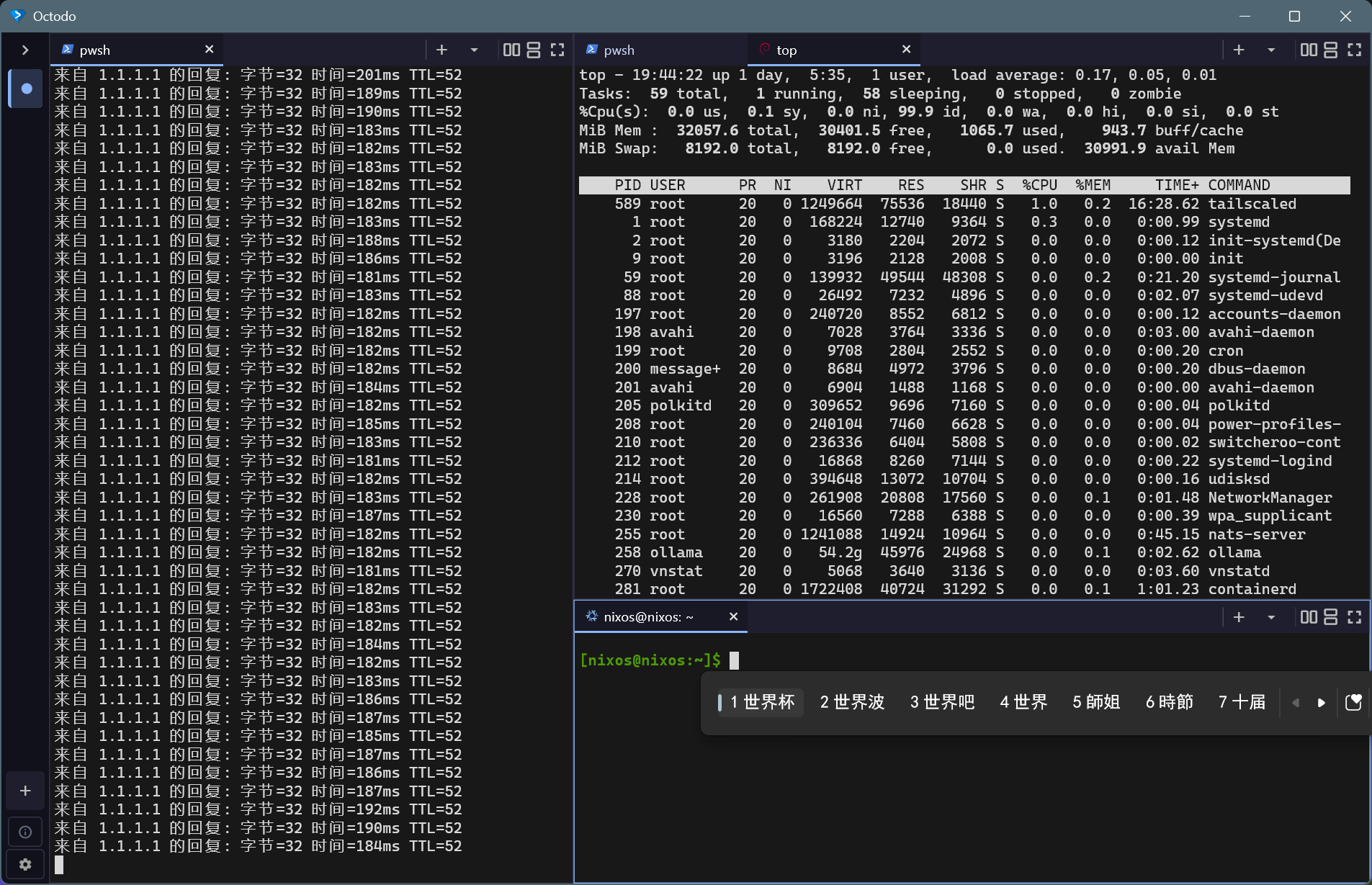
Keyboard shortcuts#
| Windows / Linux |
macOS |
Action |
Ctrl+Shift+B |
Cmd+Shift+B |
Toggle the workspace drawer |
Ctrl+Shift+N |
Cmd+Shift+N |
New workspace (auto-focuses) |
Ctrl+Shift+W |
Cmd+Shift+W |
Close current workspace (confirm) |
Ctrl+Shift+] |
Cmd+Shift+] |
Next workspace (cyclic) |
Ctrl+Shift+[ |
Cmd+Shift+[ |
Previous workspace (cyclic) |
Ctrl+Shift+1 … 9 |
Cmd+Shift+1 … 9 |
Jump to workspace N |
F11 |
Ctrl+Cmd+F |
Toggle fullscreen |
Ctrl+Shift+Q |
Cmd+Shift+Q |
Quit |
Panes (split + focus)#
| Windows / Linux |
macOS |
Action |
Ctrl+Shift+D |
Cmd+Shift+D |
Split focused pane right |
Ctrl+Shift+E |
Cmd+Shift+E |
Split focused pane down |
Ctrl+Shift+↑ |
Cmd+Shift+↑ |
Focus pane above |
Ctrl+Shift+↓ |
Cmd+Shift+↓ |
Focus pane below |
Ctrl+Shift+← |
Cmd+Shift+← |
Focus pane to the left |
Ctrl+Shift+→ |
Cmd+Shift+→ |
Focus pane to the right |
Ctrl+Shift+M |
Cmd+Shift+M |
Toggle maximize focused pane |
Tabs (within a pane)#
| Windows / Linux |
macOS |
Action |
Ctrl+Shift+T |
Cmd+Shift+T |
New tab in focused pane |
Ctrl+Shift+K |
Cmd+Shift+K |
Close focused tab |
Ctrl+Tab |
Cmd+Option+→ |
Next tab in focused pane (cyclic) |
Ctrl+Shift+Tab |
Cmd+Option+← |
Previous tab in focused pane |
Ctrl+1 … 9 |
Cmd+1 … 9 |
Jump to tab N in focused pane |
| Windows / Linux |
macOS |
Action |
Ctrl+Shift+C |
Cmd+Shift+C |
Copy selection |
Ctrl+Insert |
Cmd+Insert |
Copy selection (alternative) |
Ctrl+V |
Cmd+V |
Paste |
Ctrl+Shift+V |
Cmd+Shift+V |
Paste |
Shift+Insert |
Shift+Insert |
Paste |
PageUp / PageDown |
PageUp / PageDown |
Scroll one page |
Ctrl+= |
Cmd+= |
Font Zoom in |
Ctrl+- |
Cmd+- |
Font Zoom out |
Ctrl+0 |
Cmd+0 |
Font Reset zoom |